Using MultiOS-USB to Create Multiboot USB Drive
A multiboot USB drive allows its user to boot different ISOs without erasing
the drive. Before I was aware of it, I had been using traditional bootable
USB drive creation tools like Rufus, which would require rerunning the tool
and erasing the drive every time I would like to boot a different ISO. A
multiboot USB drive does not have this limitation. If I want to boot a
GNU/Linux distribution’s installation ISO when I only have a USB drive on which
a Windows installation ISO is already loaded, and if the USB drive supports
multiboot, then I just need to copy the GNU/Linux distribution’s ISO to the
drive, and the drive will allow me to choose the ISO I want to boot. The
Windows ISO can still be booted and need not be erased, and an added bonus is
that I can do this using just a file explorer or the cp command, instead of
rerunning the bootable drive creation tool or running a complicated command.
The first multiboot USB drive creation tool I used was Ventoy, and it worked fine. However, I share security concerns about it with other users. Its internals are obscure and complicated, making it difficult to audit and trust it. The bootable drive creation tool’s security matters for the installed system’s security: It is technically feasible for a bootable drive creation tool to modify the system being installed during the installation process, and this has happened before. More than ten years ago, the users of an online forum I participated in discouraged their fellow users from using certain creation tools because those tools would alter the Windows systems installed using the created drive in unwanted ways, like pre-installing adware, setting the web browser’s homepage to an ad site, and so on. Ventoy has not been known to insert ads to the installed system, but who knows whether it is not making other covert changes when its internals are too obscure to inspect?
Recently, I learned about alternative multiboot USB drive creation tools when I came across an ArchWiki article on this topic, so I decided that it was the time to switch to a Ventoy replacement. The page only listed three alternatives to Ventoy, so I did not have much choice. Luckily, there was an optimal option for me, MultiOS-USB, which met all my criteria for a multiboot drive creation tool:
-
Support for installation ISOs of Windows as well as those of major Linux distributions. Neither of the other two alternatives seemed to support Windows ISOs when I took a glimpse of their GitHub repository.
-
More transparent internals. Otherwise, why would I not stick with Ventoy? At the time of writing, MultiOS-USB has a very simple project repository layout with only 7 top-level directories, compared to 34 for Ventoy. MultiOS-USB bundles only 7 packages’ pre-built binary executables, and for each package, it provides excellent transparency on how the binaries are built by clearly disclosing the build instructions, source code, and patches, like the case for GRUB.
So, I installed MultiOS-USB to my USB drive dedicated for operating system installation and played with it to let it be able to do whatever I needed Ventoy to do. A few quirks were needed, but I am glad to report that these quirks have made MultiOS-USB a qualified replacement of Ventoy for me.
Windows 10 LTSC
The first problem I encountered was whether MultiOS-USB supported Windows 10
LTSC installation ISO. After I copied the ISO to the USB drive’s ISOs
directory, the ISO’s entry did not show up in MultiOS-USB’s boot menu.
MultiOS-USB’s list of supported OS does mention
Windows 10, though it appears that it means the non-LTSC, consumer editions of
Windows 10, whose default ISO name is Win10_22H2_English_x64v1.iso.
It turns out that MultiOS-USB supports the LTSC ISO as well; I just needed to
rename the ISO to let its filename match the pattern Win1*_*_x64*.iso, and
then MultiOS-USB recognized it. MultiOS-USB detects ISOs by filename patterns
defined in configuration files, and this is the
pattern defined for Windows. The default LTSC ISO filename is something like
en-us_windows_10_iot_enterprise_ltsc_2021_x64_dvd_257ad90f.iso, which does
not match this pattern.
DaRT 10
Microsoft Diagnostics and Recovery Toolset (DaRT) 10 is a Windows PE environment with some system recovery tools and useful utilities, like a logon password removal tool, a registry editor, a deleted file restoration tool, a file explorer, a disk eraser, etc. DaRT 10 is not provided as a pre-built bootable ISO file; instead, it is provided as an application that lets users create their own bootable DaRT 10 ISOs, and users can customize which tools they would like to include in their ISOs.
I had created a DaRT 10 ISO and had been keeping it on my USB drive in case I would need to repair a Windows installation one day, and Ventoy could boot the ISO. Now, to let MultiOS-USB boot it, I also renamed it like I did the Windows 10 LTSC ISO, following the same filename pattern. The boot processes of both DaRT 10 and modern Windows installation ISOs involve Windows PE, so I assumed that if MultiOS-USB could boot an ordinary Windows installation ISO, it could also boot DaRT 10.
However, I did not successfully make DaRT 10 work at first. I could let MultiOS-USB detect and boot it, and it could get to the boot screen with the Windows logo and the spinner. At the point where the graphical interface was supposed to be shown, the system rebooted after showing a black screen for a few seconds. For quite a while, I had no idea why this happened and had to conclude that MultiOS-USB did not support DaRT 10.
Then, one day, I luckily realized what was missing, fixed it, and then DaRT 10
has been working flawlessly with MultiOS-USB ever since. I was looking at
MultiOS-USB’s configuration files for Windows and noticed a file
Winpeshl.ini there, whose purpose I did not know
at first. I was curious, so I looked up online and learned that it is like the
start-up script for Windows PE, used to list the programs that Windows PE
should automatically launch on boot. The Winpeshl.ini file from MultiOS-USB
lists two programs: mountiso.exe, a MultiOS-USB custom program that mounts
the booted ISO on Windows PE, and x:\setup.exe, the Windows Setup program on
a Windows installation ISO. x:\setup.exe makes sense for ordinary Windows
installation ISOs, but the DaRT 10 ISO does not have a setup.exe file, so
MultiOS-USB’s Winpeshl.ini would not work for DaRT 10. To find the proper
content of Winpeshl.ini for DaRT 10, I booted the DaRT 10 ISO in a virtual
machine, opened X:\Windows\System32\winpeshl.ini (which is the file’s full
path on DaRT 10), and found the following lines:
[LaunchApps]
%windir%\system32\netstart.exe,-prompt
%SYSTEMDRIVE%\sources\recovery\recenv.exe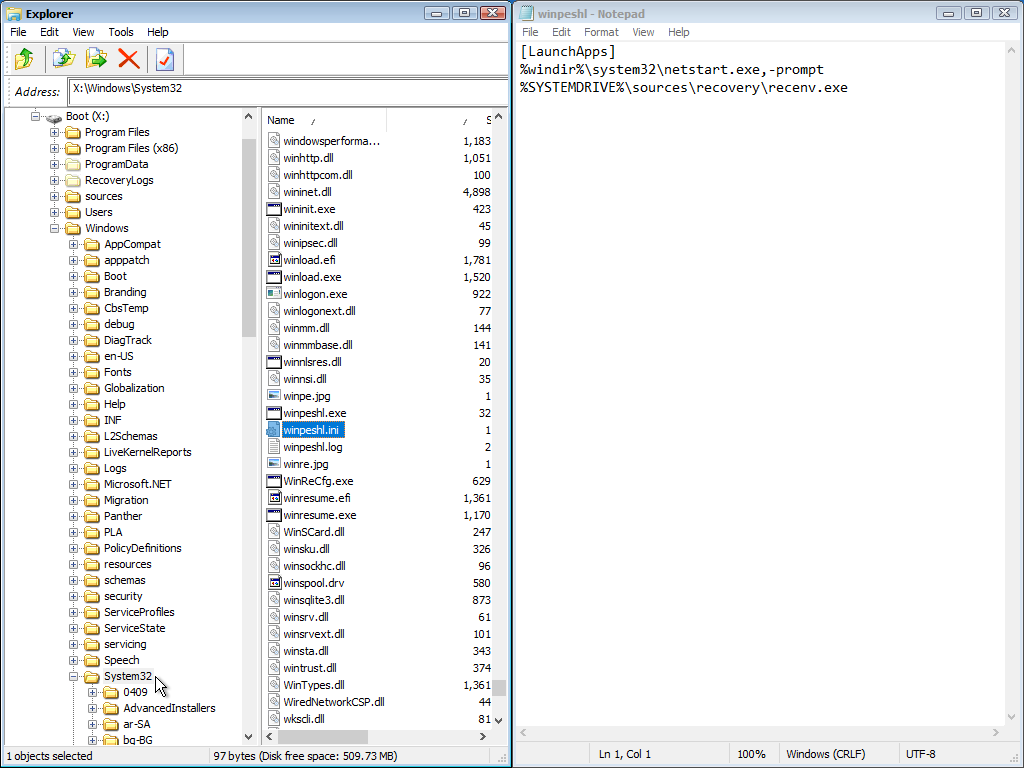
This meant that DaRT 10 would require a different Winpeshl.ini from that for
ordinary Windows installation ISOs, which justified a separate MultiOS-USB
configuration for DaRT 10. Here is how I created the separate configuration:
-
Under the
MultiOS-USBdirectory on the USB drive, copy directoryconfig/windowsintoconfig_priv, and optionally, rename the new directory underconfig_privto, for example,DaRT10.config_privis the directory that MultiOS-USB designates for custom configurations; when the user updates MultiOS-USB to a new version, configurations underconfig_privwill not be touched, whereas configurations underconfigwill be overwritten.For example, these Unix commands perform the copying:
$ cd MultiOS-USB $ cp -r config/windows config_priv/DaRT10 -
In the new directory just created under
config_priv(config_priv/DaRT10as in the example in the previous step), open filewindows_iso.cfg, and make these changes:-
At the top of the file, change the
iso_patternvariable’s value to match the DaRT 10 ISO’s filename, such as:- iso_pattern="Win1*_*_x64*.iso" + iso_pattern="DaRT10*.iso" for isofile in ($dev,*)$iso_dir/$iso_pattern; do if [ -e "$isofile" ]; then -
Near the end of the file, find the line that references
Winpeshl.ini, and replace the occurrence ofconfig/windowsin this line to the new directory’s path (e.g.,config_priv/DaRT10):$wimboot_initrd newc:boot.wim:(loop)/sources/boot.wim \ newc:mountIso.exe:/MultiOS-USB/tools/mountiso/mountiso64.exe \ newc:grubenv:($dev,1)/grub/grubenv \ - newc:Winpeshl.ini:/MultiOS-USB/config/windows/Winpeshl.ini + newc:Winpeshl.ini:/MultiOS-USB/config_priv/DaRT10/Winpeshl.ini
-
-
In the same directory, update
Winpeshl.inifor DaRT 10 by replacingx:\setup.exewith the entries of applications that DaRT 10 starts on boot:[LaunchApps] mountiso.exe - x:\setup.exe + %windir%\system32\netstart.exe,-prompt + %SYSTEMDRIVE%\sources\recovery\recenv.exe
After this was done, MultiOS-USB was able to boot DaRT 10 normally.
Secure Boot
MultiOS-USB supports Secure Boot. On systems where Secure Boot is on, the user needs to first enroll MultiOS-USB’s certificate, and then they will be able to boot MultiOS-USB. This is the same as Ventoy.
What is different between MultiOS-USB and Ventoy is that, with MultiOS-USB, it
is also necessary to enroll the certificate of each Linux distribution whose
ISO is to be booted, or else GRUB, which is used by MultiOS-USB as the
bootloader, would raise a “bad shim loader signature”
error and refuse to boot the ISO; whereas Ventoy would
unconditionally boot any ISOs, even those that do not bear a signature that the
machine owner has trusted by enrolling its certificate, making enrolling the
certificate unnecessary. I believe the reason behind this is that Ventoy had
removed GRUB’s shim_lock module from its custom version of GRUB
2.04 (which it had used as the bootloader), whereas the
shim_lock module exists in unmodified GRUB 2.04.
Without the shim_lock module, Ventoy’s GRUB had no code that would enforce
Secure Boot signature check. This made Ventoy more convenient to use, with a
trade-off for security: it would allow any ISOs – including untrustworthy
ISOs – to boot.
As of MultiOS-USB version 0.11.1, which is the latest version at the time of
writing, MultiOS-USB does not support booting a Windows installation ISO when
Secure Boot is on. This is because Windows installation ISOs use the UDF
filesystem, whose support in GRUB is disabled when Secure Boot is
on. Based on MultiOS-USB development activities, I
believe a future version of MultiOS-USB will support booting a Windows
installation ISO when Secure Boot is on: a patch that re-enables GRUB’s UDF
support for Secure Boot has been added to a
branch of the repository where MultiOS-USB’s modifications to its version of
GRUB are published. I have already tested this patch and have confirmed that
it allows MultiOS-USB to boot Windows installation ISOs. To test this patch, I
downloaded a GRUB build containing the
patch made by the repository’s CI/CD
pipeline, extracted grubx64.efi in it to EFI/BOOT/grubx64.efi on my USB
drive’s MultiOS-EFI partition, and signed EFI/BOOT/grubx64.efi using my
own certificate, which I had enrolled on my machine.